A1. The first launch
The first time you open Sunline, two things happen in the background:
Map data downloads. The app installs a base set of Earth textures sized for your device. You'll see "Preparing your experience…" with a progress bar. This usually completes in well under a minute on a normal connection. If something goes wrong (no network, partial download) you get two buttons: Retry, which starts again, and Preview (low‑res), which lets you start using the app immediately with whatever low‑resolution data is already available. You can finish the download later from Settings — see H2. Map downloads and updates.
Location is detected (mobile only, and only if you grant permission). The app asks your device for a one‑off GPS reading; from that it sets your location and timezone. If you decline, or if GPS isn't available, the app falls through to the location settings screen and you pick a country and city manually. See A3. Setting your location.
When both are done, the main map view appears.
If you never set a location and don't have GPS, the app defaults to Dublin, Ireland. That's just a sensible fallback — change it in Settings whenever you like.
A2. The map at a glance
The main view fills the whole window. By default you'll see:
- The Earth, either as a flat Mercator‑style projection or as a 3D globe.
- A faint Sun line running across the map, separating day from night.
- The dark hemisphere shaded, with city lights glowing on the night side (NASA's Black Marble imagery).
- A small marker and label for your selected city.
- Faint vertical lines every 15° of longitude — the geographic time bands.
- A clock in the top‑left corner showing local time and UTC.
When the app is downloading maps in the background, or needs your attention, a small status dot appears in the bottom‑left corner; when everything is quiet, there's no dot at all. See H1. The Activity LED.
Touch or click the map and a small control overlay appears in the top‑right with icons for switching view, opening Settings, going fullscreen, and (during a time-lapse) summoning the on‑map controls. These controls auto‑hide after about four seconds.
Everything else — cloud cover, celestial body markers, seasonal map textures, political timezone shading, and so on — is a setting you can switch on or off. See Part B — The Map and Part D — Display and Appearance.
A3. Setting your location
Your selected location does three things: it picks the city marker on the map, it sets the timezone used by the clock and by the local‑time displays, and (if "Center Map on Location" is on) it determines what part of the world stays in the middle of the view.
There are three ways to set it:
1. GPS auto‑detect (mobile). On first launch the app may ask for location permission; if you grant it, your location is set automatically and saved.
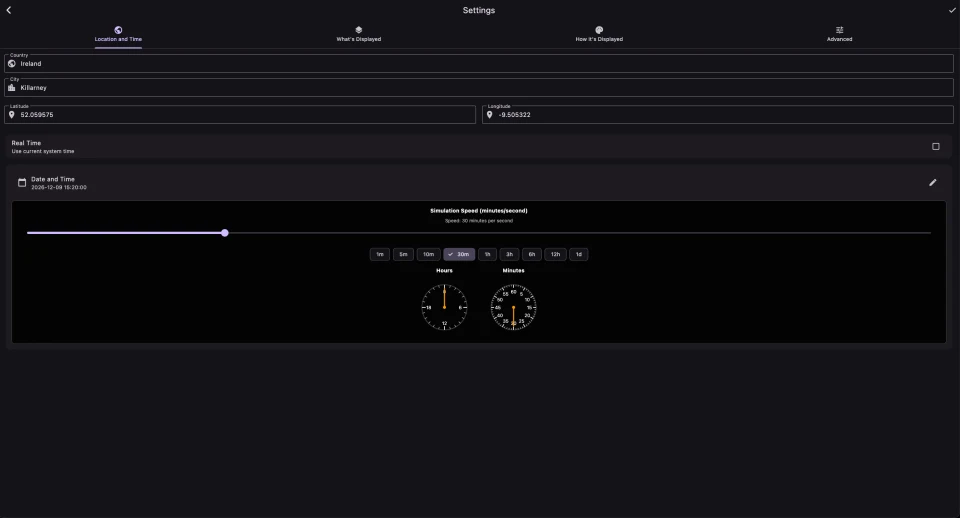
2. Settings → Location and Time tab. Open Settings (the gear icon, or Ctrl+, / Cmd+, on desktop). Type a country in the Country field and pick from the autocomplete list. Then pick a City the same way. Latitude and longitude appear underneath, read‑only. The country and city lists are built in, so this works offline. Press the ✓ button in the top bar (Save & Continue) to commit.
3. Long‑press anywhere on the map. Press and hold a point on the Earth. The app reverse‑geocodes the point to a country and city. If it succeeds, your location is updated silently. If you long‑press over open ocean or somewhere unmappable, a small callout pops up asking you to name the place — this lets you place yourself on a remote island, on a ship, or anywhere off the standard map. Both a country and a city are required. If the reverse‑geocode already recognised the country, it's filled in and locked (you're plainly in that country, so it can't be changed) and you just add the city; otherwise you type both. Confirm and the location is saved.
Whenever you set a location by long‑pressing (either way), Center Map on Location is automatically switched off — so the map doesn't jump under the finger or cursor that just placed the marker. Switch it back on in Settings → How it's Displayed whenever you want the map to follow your location again (D4).
One guard rail: if the country/city you name is a place Sunline already knows, and the point you pressed is more than about half a degree (~55 km) away from where that place actually is, the app uses the known coordinates instead of the pressed point — so you can't, say, pin "Dublin, Ireland" in the middle of the Atlantic. Naming a place Sunline doesn't have on file keeps the pressed coordinates as‑is.
A4. Real time vs simulated time
Sunline is always showing the Earth's light at some start and some speed. There are two states:
- Live (the default). The real world's clock — right now, at real speed. Nothing to configure.
- Time-lapse. The app's own clock: you pick a moment to start from and a speed to fly forward at, and watch days and seasons roll by. See C2. Time-lapse.
Both controls live on the Settings → Location and Time tab and are always visible. A green LIVE · real time badge shows when you're following the real world; change the Start or the Speed and you're running a time-lapse (the badge changes and a Go Live button appears to bring you back). Because playing time at real speed would just be a drifting copy of Live, time-lapse always runs faster than real — that's the point of it.
Some live features behave differently in time-lapse: cloud cover is shown from a bundled demo image (because there's no "today" to fetch), and the daily cloud download is disabled.