C1. Live
This is the default. The app uses your device's clock, in the timezone of your selected city. The Sun line, sub‑solar point, sub‑lunar point, and clock all move accordingly. There is nothing to configure — a green LIVE · real time badge on the Location and Time tab shows you're following the real world.
If you're Live and Download Daily Cloud Formations is on, the app will refresh cloud imagery in the background.
C2. Time-lapse
On the Settings → Location and Time tab, the Start and Speed controls are always visible. Set either and you're running a time-lapse:
- Start — when — tap to pick a start date (any year from 1900 to 2100) and a start time of day. The time-lapse plays from this moment. (Changing only the speed from Live starts the time-lapse from now.)
- Speed — how fast — see C4. The Speed control. A fresh time-lapse starts at a gentle 5 minutes per second — a full day in about five minutes.
The badge changes to Time-lapse and a Go Live button appears; the world starts from the chosen moment and advances at the chosen speed, with the clock and Sun line following. Press Go Live to return to the real world. (Nudging the Start — including "Set to now" — re-aims the time-lapse but keeps you in it; only Go Live returns you to Live.)
You can summon the on‑map Time-lapse controls to play, pause, or scrub — see the next section. When you Go Live, they hide automatically.
By default a time-lapse also ends itself: the Time-lapse timer (the End time-lapse after control, in the TIMER — HOW LONG section just below the Speed control) returns you to Live after 10 minutes, with a 30‑second warning first. Set it to Never if you want a time-lapse to run until you stop it. See E2. The Time-lapse timer.
C3. The Time-lapse controls
The Time-lapse controls are an on‑map transport control. They only appear during a time-lapse, and only when you summon them.
To show them, either tap the map and press the Show Time-lapse controls icon in the top controls, or on desktop press P. To hide them, press the small × beside the play button; they never auto‑hide.
If you close and reopen the app mid‑time‑lapse, it picks up where you left off: a paused time‑lapse reopens paused (with the controls visible so you can see it's paused), a playing one resumes playing, and the controls come back if you had them up. Changing the speed while paused keeps you paused — the new speed applies when you press play. Starting a fresh time-lapse from Live, or picking a new Start, always begins playing, even if you left an earlier one paused.
There are two parts:
- A floating play / pause bubble in the centre. Tap it to pause or resume. Available to all users.
- A horizontal shuttle track below the bubble (Premium). Drag the thumb left or right — left rewinds, right fast‑forwards. The further from centre you push it, the faster it goes. While dragging, a readout shows the speed (for example, "▶▶ 5 min/s"). Release and the thumb springs back to centre and time resumes at its configured speed.
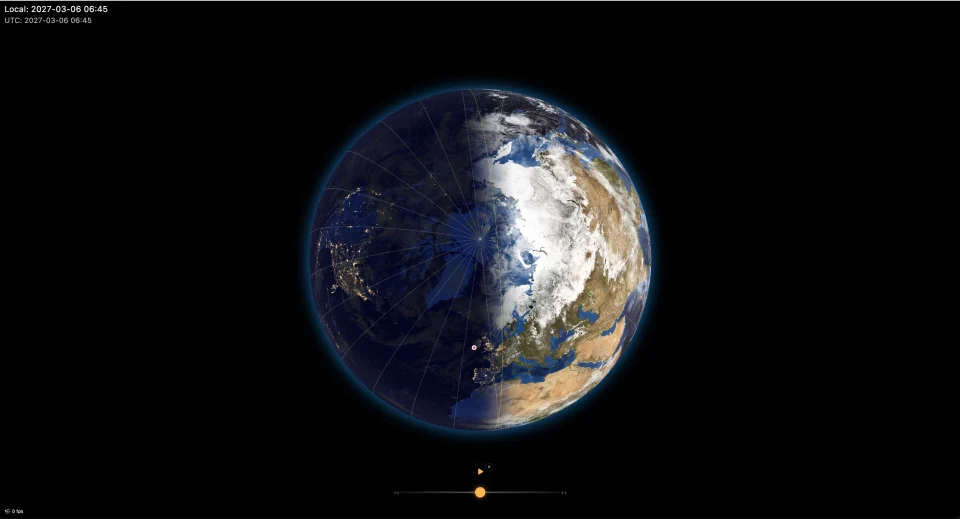
The shuttle's speed range is from one minute per real second (the slowest) up to one day per real second (the fastest). Free users see the shuttle too, but it's locked: the thumb shows a small lock badge, and dragging or tapping it flashes a Premium notice rather than scrubbing. Play / pause remains the free control, and time runs at whatever speed is set in the Speed control.
By default the shuttle follows the tape convention — push right to fast-forward, left to rewind. If you find that backwards, Natural shuttle direction (Premium; Settings → How it's Displayed) flips it so fast-forward is to the left, matching the way the Sun line drifts leftward across the map as time moves forward. It's off by default.
C4. The Speed control
The Location and Time tab's Speed — how fast control offers the preset chips up front, with a Fine-tune section (tap to expand) holding a slider and dials. All three stay in sync:
- Preset chips — 1m, 5m, 10m, 30m, 1h, 3h, 6h, 12h, 1d, all "per real second". Tap any chip to snap to that exact speed (and, from Live, to start a time-lapse).
- A logarithmic slider — drag from slow (1 minute per second) to fast (1 day per second). The scale is non‑linear so that small speeds are easy to pick.
- Two clock dials — a left dial for hours (0–23) and a right dial for minutes (0–59). Tap anywhere on a dial to set the hand to that hour or minute, building up the total speed from both.
The slowest speed is one minute per second: playing time at real speed would just be a drifting copy of Live, so a time-lapse always runs faster than real.
A live readout at the top of the panel shows the current speed in plain English, for example "1hr 15min per second" or "1 day per second".